How to program your Roku remote to voice control your non-Roku TV
Roku's remotes can be used to control non-Roku TVs with voice commands, making it easier to navigate and control media playback. This guide explains how to set up voice control using a Roku remote.
Intelligence analysis by Llama
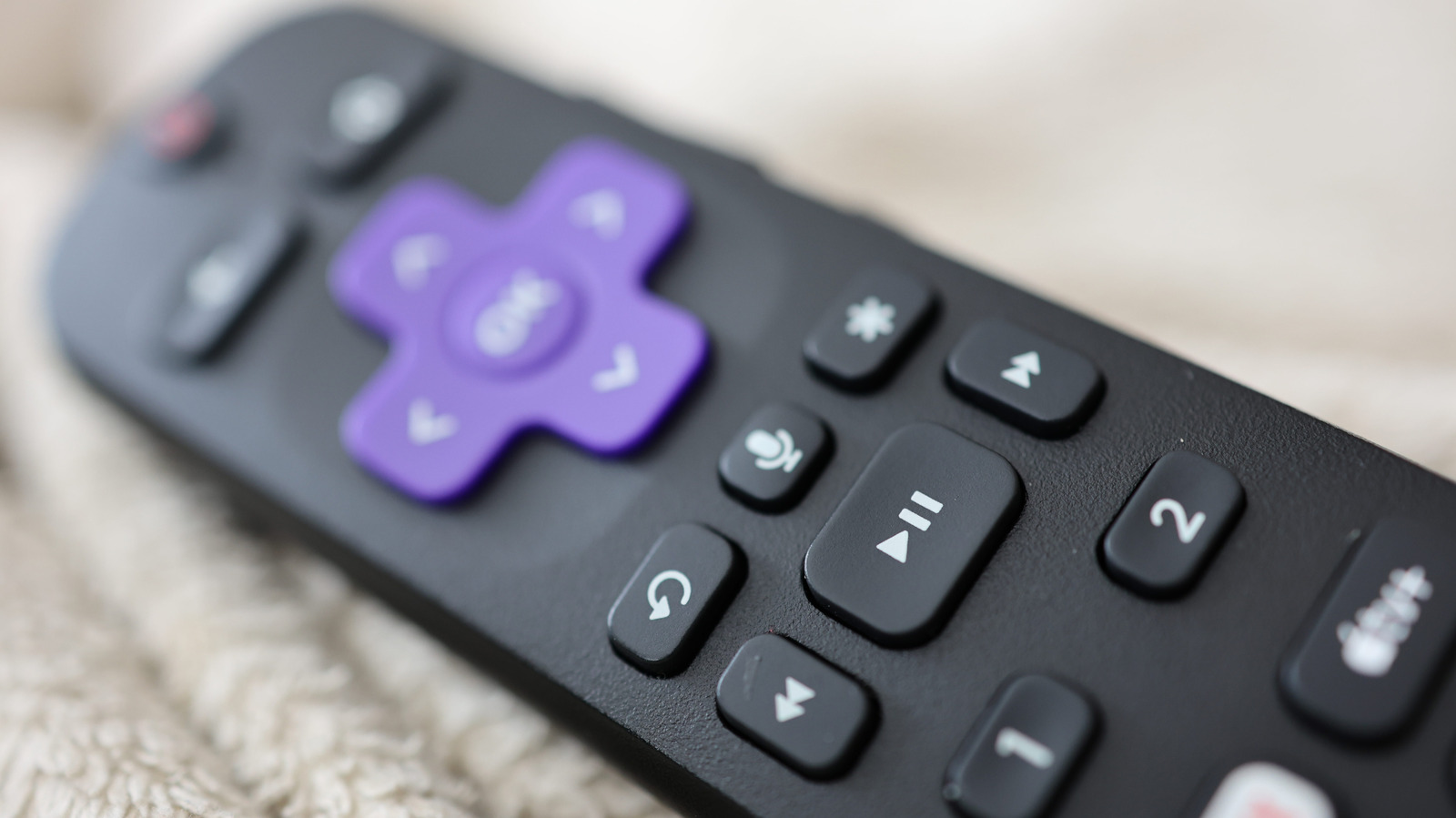
Roku's remotes can be used to control non-Roku TVs with voice commands, making it easier to navigate and control media playback. To set up voice control, press the Home button on your Roku streaming device's remote control, navigate to Settings > Remotes & devices > Remotes, pick your Roku remote, and select the Set up remote for TV control option.
Imagine you have a smart TV, but it's not really smart. You can use a special remote control to make it smarter. This remote control is called a Roku remote, and it can help you control your TV with voice commands. It's like having a personal assistant for your TV!
Analysis
Setting Up Voice Control Using a Roku Remote
To start using your Roku remote to control your TV's functions, press the Home button on your Roku streaming device's remote control. Navigate to Settings > Remotes & devices > Remotes, pick your Roku remote, and select the Set up remote for TV control option. This will start a quick setup process during which your Roku device will attempt to identify your TV's brand and model.
What to Do If Your TV Doesn't Support HDMI-CEC
If your TV doesn't support HDMI-CEC, you can still use your Roku remote to control your TV's functions, but you'll need to use the Roku Voice Remote Pro. To set up the voice remote, make sure your TV has the HDMI-CEC option turned on, then head to your Roku device's settings and set up the voice remote again.
Tips for Setting Up Voice Control
If you own a Roku Voice Remote Pro and are unable to control your TV using voice commands, make sure your TV has the HDMI-CEC option turned on. Then, head to your Roku device's settings and set up the voice remote again. If your Roku device is connected to a receiver, Roku recommends connecting it directly to your TV during the remote setup process, as it may help with identification.
The Benefits of Using a Roku Remote to Control Your TV
Using a Roku remote to control your TV's functions can make it easier to navigate and control media playback. With voice commands, you can say 'Hey Roku' and ask your remote to turn your TV on, adjust its volume or turn it back off, without ever having to press a button. The Roku interface itself can be controlled using its AI-powered voice control that can help you launch apps, find content to play and even answer questions about what's on the screen.
Key points
- Roku remotes can be used to control non-Roku TVs with voice commands.
- To set up voice control, press the Home button on your Roku streaming device's remote control and navigate to Settings > Remotes & devices > Remotes.
- Make sure your TV has the HDMI-CEC option turned on to use voice commands with a Roku Voice Remote Pro.
- Using a Roku remote to control your TV's functions can make it easier to navigate and control media playback.
- The Roku interface itself can be controlled using its AI-powered voice control that can help you launch apps, find content to play and even answer questions about what's on the screen.
If this development plays out positively, it could lead to more people using voice commands to control their TVs, making it easier for them to navigate and control media playback. This could also lead to more people using Roku devices, which could increase the company's revenue and market share.
However, there are also some potential downsides to this development. For example, some people may be concerned about the security implications of using voice commands to control their TVs. Others may be worried about the potential for voice assistants to become too powerful and invasive.