How To Reset The Camera Settings On Your iPhone
Learn how to reset iPhone camera settings to default for better photography and videography.
Intelligence analysis by Qwen 2.5 (3B)
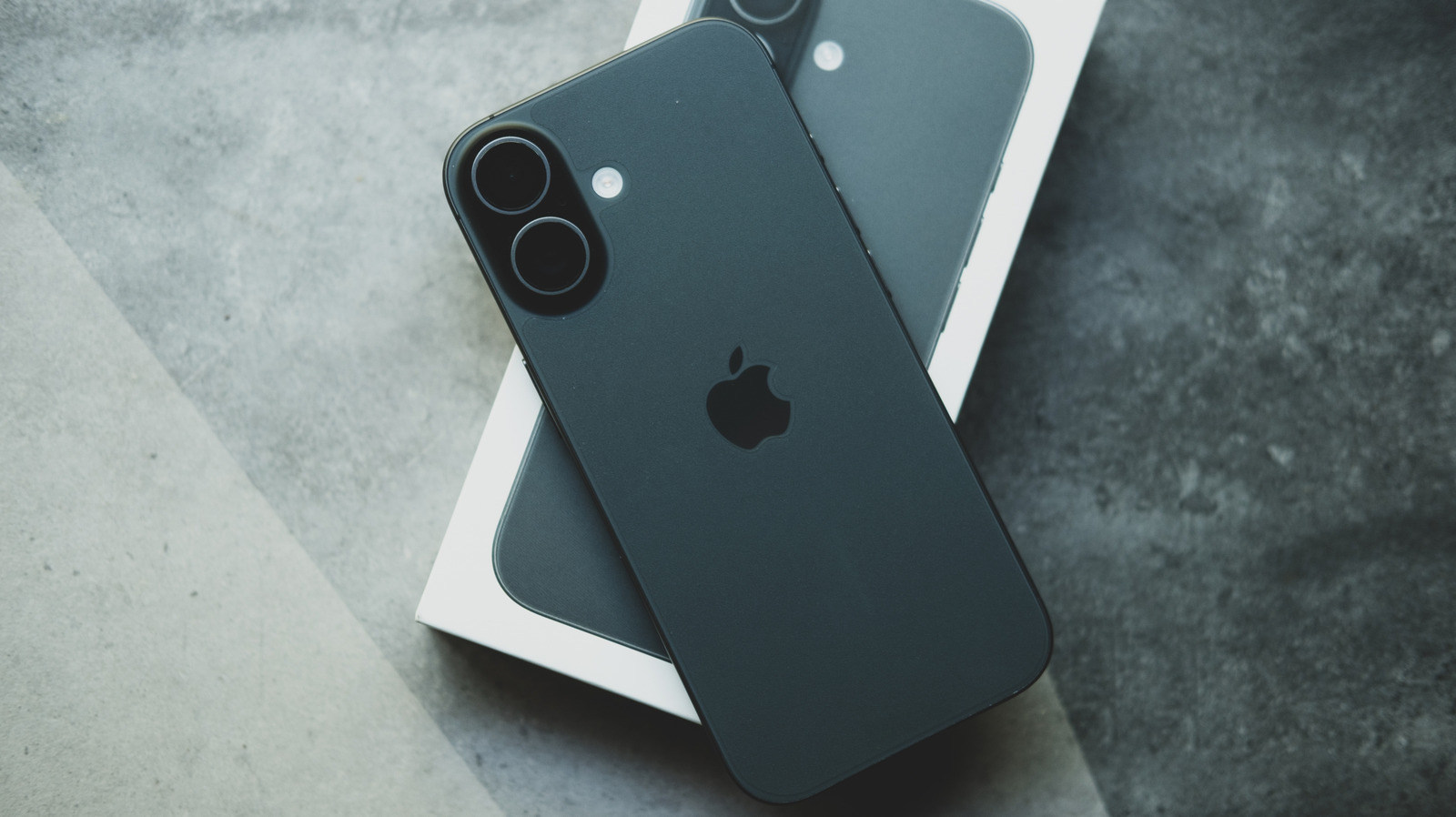
This article explains how to reset iPhone camera settings to their default state for improved photography and videography quality.
To reset your iPhone camera settings to default, you need to go to Settings > Camera and turn off all the custom settings you've made. This includes things like Live Photo, frame rate, resolution, and more. The default settings are designed to work well with most situations and devices.
Analysis
Understanding Default Camera Settings
When you reset your iPhone camera settings to default, you're essentially turning off all the custom settings you've made. This includes Live Photo, frame rate, resolution, and more. The default settings are designed to provide a baseline for optimal performance and quality. For example, the frame rate for recording video is set to 1080p at 30 fps (or 240 fps for Slo-mo), and the resolution is set to 24 MP. These settings are designed to work well with most situations and devices.
Resetting Camera Settings
To reset your iPhone camera settings to default, you can either go through the Settings > Camera menu or use the Reset options in Settings > Transfer or Reset iPhone. The Reset options will remove any Apple Pay cards, keys, and passes, and bring all settings to their defaults. However, this option should only be used if you're absolutely sure and can switch back anything you don't want as default.
Additional Camera Settings
If you have an iPhone that can install iOS 26, there are a few extra settings with their own defaults. For instance, Lens Correction, Macro Control, and Scene Detection should all start toggled on. The default resolution under Formats should be 24 MP. ProRAW & Resolution Control will also be off. These settings are designed to work well with the latest features and devices.
Why Reset Camera Settings?
Resetting your iPhone camera settings to default can help you improve your photography and videography quality. It's especially useful when using a second-hand phone or after making changes to settings. By resetting to default, you can ensure that your camera is working as intended and providing the best possible results.
Key points
- Reset your iPhone camera settings to default to improve photography and videography quality
- Use Settings > Camera to turn off custom settings
- Reset options in Settings > Transfer or Reset iPhone will remove Apple Pay cards, keys, and passes
- If you have an iPhone that can install iOS 26, some extra settings with their own defaults are available
- Resetting to default can help ensure your camera is working as intended and providing the best possible results
Resetting your iPhone camera settings to default can help you improve your photography and videography quality. It's especially useful when using a second-hand phone or after making changes to settings.
Resetting your iPhone camera settings to default can remove any custom settings you've made, which might be useful if you want to start fresh or if you have a second-hand phone that arrived pre-muddled.