How to use AirPods to control your iPhone camera
AirPods can act like a wireless shutter for iPhone cameras. The feature works on newer AirPods models and must be turned on in Settings.
Intelligence analysis by GPT-5.4 Mini
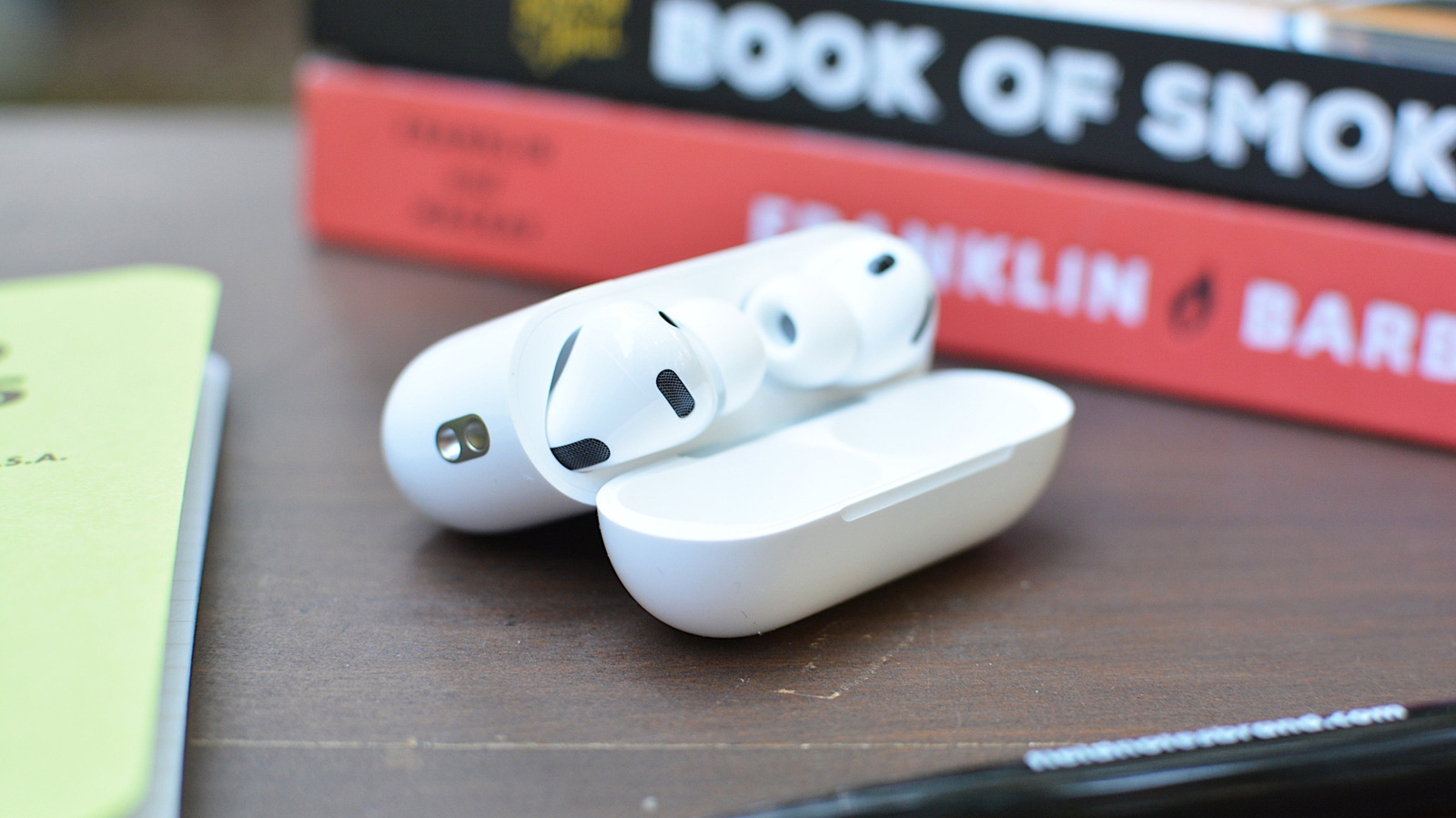
Apple’s Camera Remote feature lets supported AirPods trigger the iPhone camera without an Apple Watch. It is a simple hands-free photo and video shortcut, but it comes with model limits and gesture tradeoffs.
AirPods can work like a tiny camera button for an iPhone, kind of like a TV remote for taking pictures. A person turns the feature on in Settings, then taps the AirPods to snap a photo or start a video.
Analysis
What the feature does
Apple added Camera Remote in iOS 26 as one of several new AirPods features. The idea is straightforward: supported AirPods can work as a wireless shutter button for the iPhone camera. That means someone can set up a shot, open the Camera app, and trigger a photo or video start-stop from their ears instead of rushing back to the phone after setting a timer.
What is required
The article says the iPhone needs the latest iOS version available at the time of writing, which it identifies as iOS 26.5.1. It also says the feature works only with AirPods Pro 3, AirPods Pro 2, AirPods 4, or AirPods Max 2. Older models, including the original AirPods Pro, do not support it.
How to turn it on
Camera Remote is off by default. In iPhone Settings, the user opens the AirPods settings page, finds the Camera Control section, and chooses Camera Remote. Apple lets the user pick either Press Once or Press and Hold.
Once enabled, the AirPods can trigger camera actions only while the Camera app is open. The article also notes an important limit: at least one AirPod must be in an ear for the control to work. If they are just sitting on a desk or held in a hand, they will not act as a camera remote.
The tradeoff
There is a catch. Apple says that enabling Camera Remote changes what the AirPods buttons can do while the Camera app is open. Depending on the setting, either media controls or Siri and listening-mode gestures become unavailable. The feature is useful, but it is not free of compromises.
Key points
- Camera Remote lets supported AirPods trigger the iPhone camera.
- The feature is available in iOS 26 and is off by default.
- Users enable it in AirPods settings under Camera Control.
- Only newer models are supported, not older AirPods Pro units.
- At least one AirPod must be in an ear for it to work.
If the feature works smoothly, it makes taking selfies and quick videos much easier for people who do not own an Apple Watch. It also adds another practical use for newer AirPods models beyond listening to music and calls.
The feature is limited to newer AirPods models, so many owners cannot use it. It also turns off some AirPods gestures while the Camera app is open, which may make the convenience feel less worth it for some users.