Is Your iPhone Stuck In SOS Mode? Here's How To Fix It
If your iPhone is stuck in SOS mode, try turning it off and on again, or check your carrier settings and update your iOS. You can also contact your carrier directly to troubleshoot issues.
Intelligence analysis by Llama
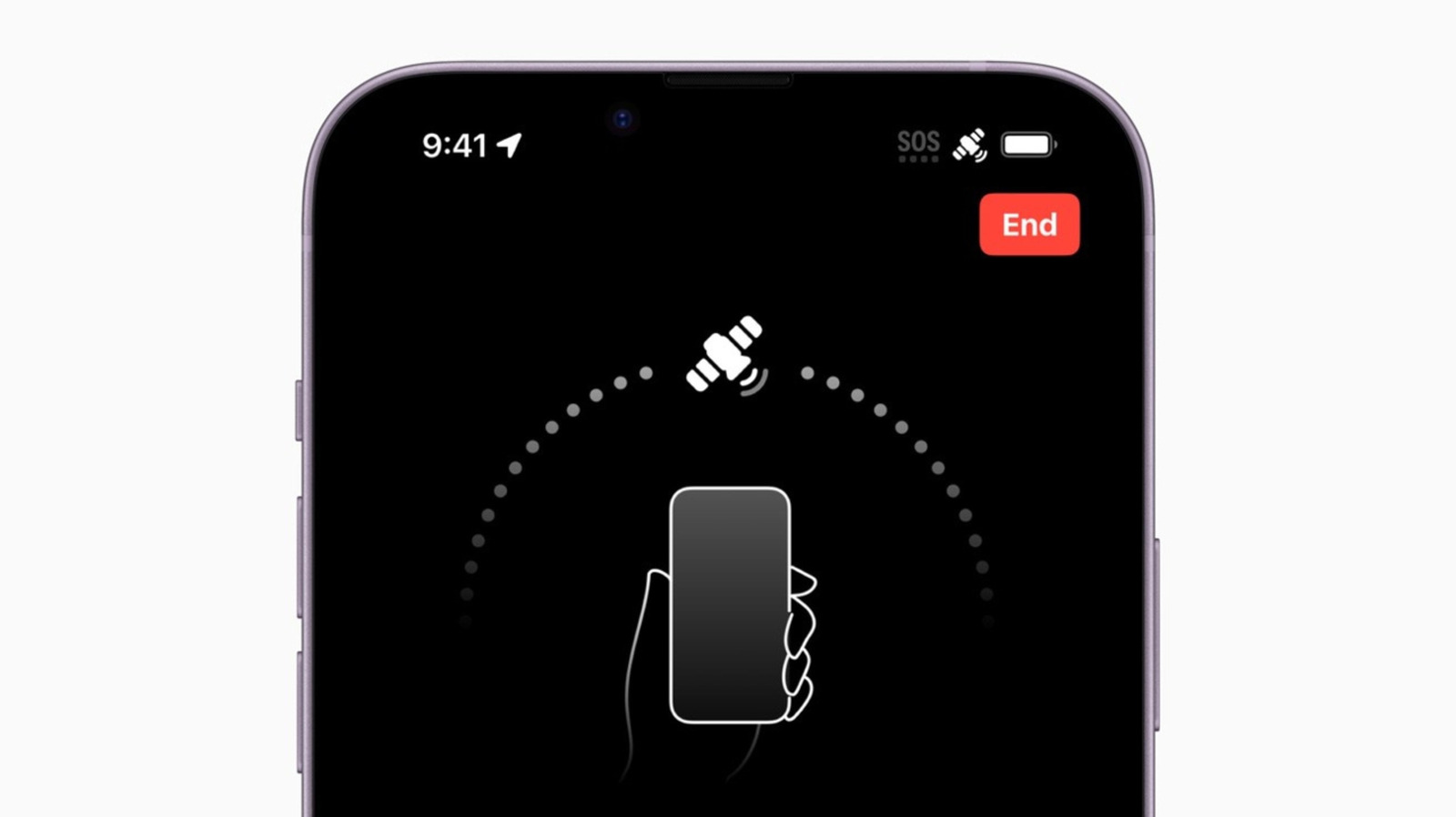
If your iPhone is stuck in SOS mode, try these simple fixes: turn it off and on again, check your carrier settings, and update your iOS. If the issue persists, contact your carrier for assistance.
Imagine you're on a hike and your phone says SOS. It's like a big red flag that says 'help!' But don't worry, you can fix it by turning your phone off and on again, or checking your carrier settings. It's like restarting your computer, but for your phone!
Analysis
What to Do When You See the SOS Icon
Apple's support page offers several remedies for SOS issues. The first is to try to connect to your available cellular network. To do so, Apple suggests you try flipping to Airplane Mode for a minimum of 15 seconds before returning to your regular cellular settings. If such a fix doesn't solve your issue, Apple delivers the tried-and-true classic of turning your phone off and on again. The guys from The IT Crowd would be proud.
Troubleshooting SOS Issues When Abroad
Some extenuating circumstances may cause your iPhone to be in SOS mode. As an avid globetrotter, I've often encountered the issue when traveling internationally. The most likely issue, in this instance, is that your phone's Data Roaming settings are not enabled. Data Roaming allows your device to operate outside your network's coverage area by using another carrier's network. Typically, this is done through pre-established partnerships between your carrier and local cellular providers. To solve this issue and turn on Data Roaming, visit your Settings app's Cellular tab. From there, turn on your desired cellular data network, and click Cellular Data Options, where you may find and enable Data Roaming option. Do so with caution, however, as using Data Roaming may result in additional fees. As a rule, it is always best to confirm your plan's international options before traveling. If using an international eSIM, refer to the instructions above on handling dual SIM cards. To ensure your travel eSIM works correctly, its best to turn off your other carrier or enable data switching, which will enable you to use data from both plans to ensure you have the best possible coverage. Again, however, its important to note that using Data Switching abroad may expose you to extra fees.
Conclusion
If your iPhone is stuck in SOS mode, try these simple fixes: turn it off and on again, check your carrier settings, and update your iOS. If the issue persists, contact your carrier for assistance. It's also essential to understand how to troubleshoot SOS issues when traveling abroad, as Data Roaming settings may be the culprit. By following these steps, you can ensure your iPhone is working correctly, even in areas with limited cellular coverage.
Key points
- Try turning your iPhone off and on again to fix SOS mode
- Check your carrier settings and update your iOS
- Contact your carrier directly to troubleshoot issues
- Understand how to troubleshoot SOS issues when traveling abroad
- Data Roaming settings may be the culprit when traveling internationally
If you follow these steps and fix your iPhone's SOS issue, you'll be able to use your phone again and stay connected with loved ones, even when traveling abroad. This is especially important for people who rely on their devices for emergency situations.
If you're unable to fix your iPhone's SOS issue, you may be left without a working phone, which can be a significant inconvenience, especially when traveling abroad. Additionally, using Data Roaming may result in additional fees, which can be a financial burden.