There's a Chance Your PlayStation 5 Is Plugged into the Wrong HDMI Port
A simple mistake can limit your PS5's full gaming experience. Check your HDMI port and cable for the best setup.
Intelligence analysis by Qwen 2.5 (3B)
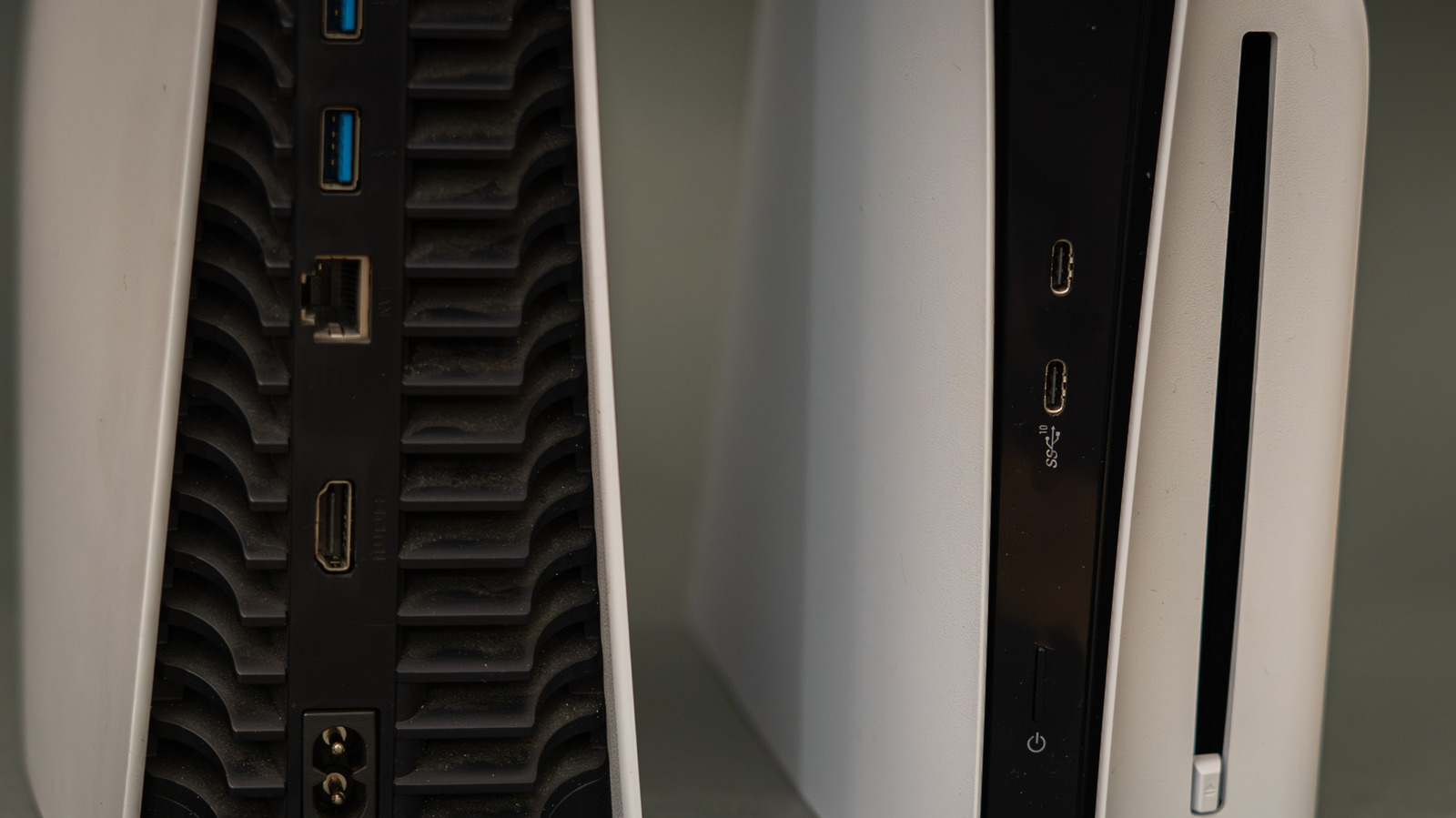
Your PS5 might not be getting the full 4K 120Hz experience if it's plugged into the wrong HDMI port or cable.
Your PS5 can show good pictures, but if it's plugged into the wrong HDMI port, you might not get the best gaming experience. Make sure your TV or monitor has an HDMI 2.1 port and use a good quality HDMI cable to get the full 4K 120Hz output.
Analysis
Understanding HDMI 2.1 and PS5 Compatibility
HDMI 2.1 and PS5 Features
HDMI 2.1 is designed to support high-speed data transfer and advanced features like 4K resolution at 120Hz, which is crucial for PS5 gaming. However, not all TVs and monitors support these features. The PS5 console supports HDMI 2.1 for 4K output at 120Hz, among other gaming features. This is why it's important to ensure your setup is compatible.
HDMI Port and Cable Considerations
Port Compatibility
Not all HDMI ports are created equal. TVs and monitors often have multiple HDMI ports, each with different capabilities. The PS5 console requires HDMI 2.1 for optimal performance, which is typically the third or fourth port on most TVs. If your TV doesn't have an HDMI 2.1 port, you may need to look for an HDMI 2.1-compatible port.
Cable Quality
Sony recommends using the HDMI cable that comes with the PS5, or another high-quality Ultra High Speed (HDMI 2.1) cable. The quality of the cable can significantly impact the signal strength and quality. Using a lower-quality cable can result in a degraded signal, even if the port is HDMI 2.1.
Setting Up Your PS5
Input Settings
Check your TV or monitor's input settings to ensure that the correct HDMI port is selected. The PS5 console should automatically detect the correct input, but it's always a good idea to verify. If your TV or monitor doesn't have an HDMI 2.1 port, you may need to use a different port.
PS5 Settings
On the PS5, you can also set the resolution to Automatic, which should automatically detect the best resolution for your setup. Additionally, you can enable the 120Hz output feature, which is crucial for achieving the full 4K 120Hz experience. You can also enable VRR (Variable Refresh Rate) and Auto Low Latency Mode to further optimize your gaming experience.
Troubleshooting
If your PS5 still doesn't deliver the signal you expect, recheck your input, cable, and display settings. If the issue persists, it may be worth considering a professional repair or replacement of the PS5 or the HDMI cable.
Key points
- Check your TV or monitor for an HDMI 2.1 port
- Use a high-quality HDMI cable
- Verify your input settings on both the PS5 and your display
By ensuring your PS5 is connected to the right HDMI port and cable, you can enjoy the full benefits of the PS5 console, including smoother motion and higher refresh rates.
If your PS5 is plugged into the wrong HDMI port or cable, you might not get the full 4K 120Hz output, which could limit your gaming experience.