Why Your Smart Speaker Keeps Misunderstanding You (And How To Fix It)
Smart speakers are prone to misunderstanding commands, but fixes are often simple.
Intelligence analysis by Qwen 2.5 (3B)
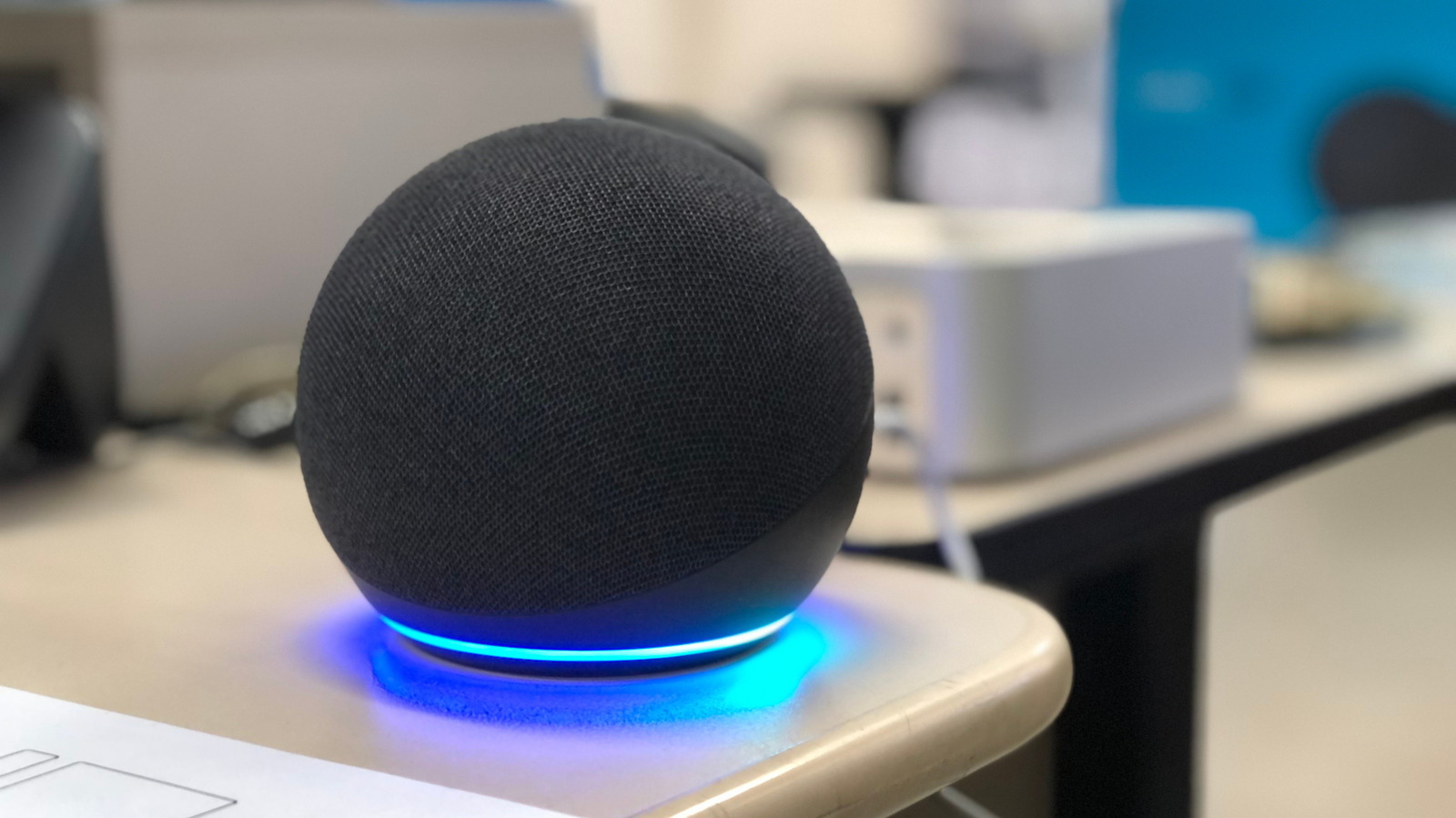
Smart speakers can misinterpret commands due to background noise, distance, or incorrect settings. Fixes include cleaning the speaker, adjusting sensitivity, and changing voice recognition settings.
Your smart speaker might not understand you if there's too much noise around, or if it's too far away. To fix this, clean the speaker, move it to a quieter place, and make sure the settings are set up so it can hear you better.
Analysis
Universal Methods for Improving Understanding
To improve the understanding of your smart speaker, start by ensuring it is clean. Use a dry cloth to wipe down the unit if there is any buildup of dust or gunk. If issues persist, try moving the speaker to a different location or a different room. Background noise, echoes, and distance (whether too close or too far from your voice) can all affect the speaker's comprehension. Try to avoid having the speaker near regular noise sources like fans or surround sound speakers. Ideally, keep it at least one foot away from walls. Having multiple speaker units can also cause issues if one taking your request isn't the closest. If the app allows, try lowering the sensitivity of the problematic speaker. For Echo devices, you can change the wake word per-device to avoid activating the wrong one.
Specific Fixes for Alexa, Google Home, and HomePod
For specific issues with Alexa, Google Home, and HomePod, you can set up voice recognition so the assistant has an easier time recognizing the way you speak. For an Echo, open the Alexa app and navigate to More > Settings > Account Management > Your Profile > Voice ID to set up a Voice ID it recognizes across platforms. For Google-powered speakers, open the Google Home app and head to Settings > Google Assistant > Voice Match to set up Voice Match for all of your connected devices. You can have up to six distinct voices per home. For an Apple HomePod speaker, open the Home app and tap the More button (three dots) to access Home Settings. There, open your user profile and turn on Recognize My Voice. For a smoother experience across devices, open Settings on your phone, tap your name at the top of the page, then go to iCloud. Tap See All by Saved to iCloud, then enable Siri.
Final Steps
If none of these methods improve your issue, restart your speaker by unplugging it for a minute and then plugging it back in. If you suspect a major issue, you may need to go a step further and perform a factory reset. This will reset all your custom settings, so only do this if nothing else has worked.
Key points
- Clean the smart speaker to remove dust and gunk
- Move the speaker to a quieter location
- Adjust the sensitivity of the problematic speaker
- Set up voice recognition so the assistant can recognize your voice better
- Restart the smart speaker if none of the fixes work
By following the universal and specific fixes, you can improve your smart speaker's understanding and make your smart home experience smoother.
If none of the fixes work, you might need to reset your smart speaker, which will erase all your custom settings.